
Table
of Contents:
o
Using the MyGlue Chrome
Extension to Auto-Fill Passwords
o
Train the Extension When Username
Field is 'Missed'
o
Bypassing the MyGlue auto-fill
logo

Auto-filling
Passwords and Password Learning
Using
the MyGlue Chrome Extension to Auto-Fill
Passwords
The
MyGlue
browser extension will automatically detect when you have accessed the
associated login webpage and autofill your username and password. The extension
matches based on the URL entered in the password definition:

When
the URL field is completed, the extension will allow you to easily use complex
passwords in every site you log into:
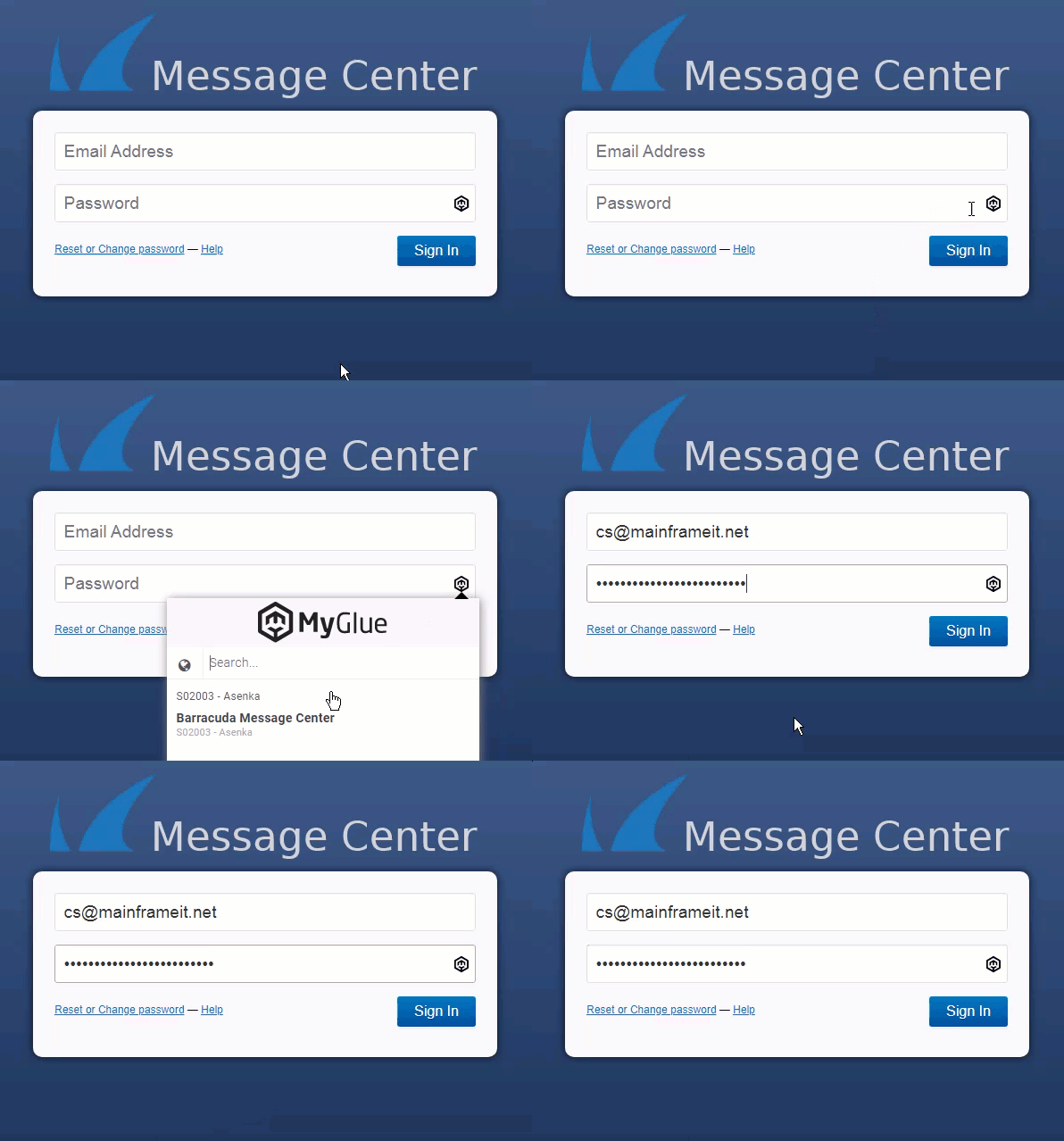
In some login processes, the username and password fields are on separate pages.
In this case, the extension will first autofill just your username, Click Next.
The extension then auto-fills your password on the next page.
Train
the Extension When Username Field is 'Missed'
While
the password field is detected automatically, depending on a website's layout
of its username and password fields, the extension may not pick the right
fields. If this happens, you can change where the username is filled by
following these steps:
1.
Click the MyGlue logo and choose
the matching credential.
2.
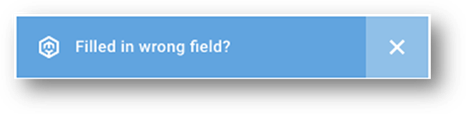
Click the Filled in the wrong
field? message.
3.
Click Learn.
4.
Click your cursor inside the username
field on the website.
When
you sign into this website again, the extension will know where to fill the
username.
Bypassing
the MyGlue auto-fill logo
If
you access a website and do not want the extension to autofill your MyGlue
stored credentials, you can use the Ctrl+/ (Mac: Cmd+/) keyboard shortcut to
bypass autofill.
Copyright (C) 2021 All rights
reserved, MainFrameIT, LLC