
Table
of Contents:
o
Objective
o
Context
o
Important Concept
o
Example

Objective:
For
all but 1-2 credentials, use MyGlue for One-Time Passcodes  instead
of the Microsoft Authenticator app on your SmartPhone/Tablet
instead
of the Microsoft Authenticator app on your SmartPhone/Tablet
 NOT
NOT
Context:
o
While Authenticator Apps like
Microsoft Authenticator are great for storing and managing One-Time Passcodes
(OTP), an important part of Two-Factor/Multi-Factor Authentication (2FA/MFA),
there are challenges across several areas:
o
Company
Shared Logins - Using apps on mobile devices
means only one person can hold the code.
o
SmartPhone/Tablet Backups
- Most are not backed up, which creates a problem when replacing or moving to
another device.
o
Staff Changes - Whether switching departments, departing, or just joining
your organization, OTP codes stuck in Authenticator apps on SmartPhones/Tablets
are a change management nightmare.
o
Using MyGlue as an Authenticator app eliminates these
issues.
Important
Concept:
o
Correctly implemented, OTP codes for
ALL organizational logins should be as follows:
o Microsoft Authenticator App:
o
1-2 MFA profiles:
o
Your Microsoft 365 MFA
Profile
o
Your MyGlue MFA Profile
o
Not all clients will have this one
o
MyGlue:
o
Credentials for ALL other organizational
logins requiring 2FA/MFA OTP codes should be stored in MyGlue

Example:
As
the look and feel of configuring MFA for a given website will look different
for each website, the following example is for understanding the concept only,
and is not what will be seen when doing this on other sites.
In
this example, the request to setup MFA is initiated at first login:
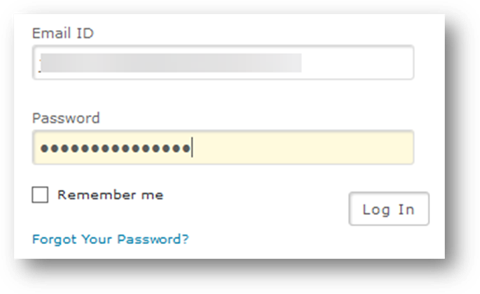
Whereas
normally in this step, you'd be using Microsoft Authenticator to add a new MFA
Profile, here we'll instead want to look for a text code we can use to add to MyGlue.
Sometimes these codes will be shown somewhere in the interface, sometimes as
shown here, you'll need to click a link to expose the code:
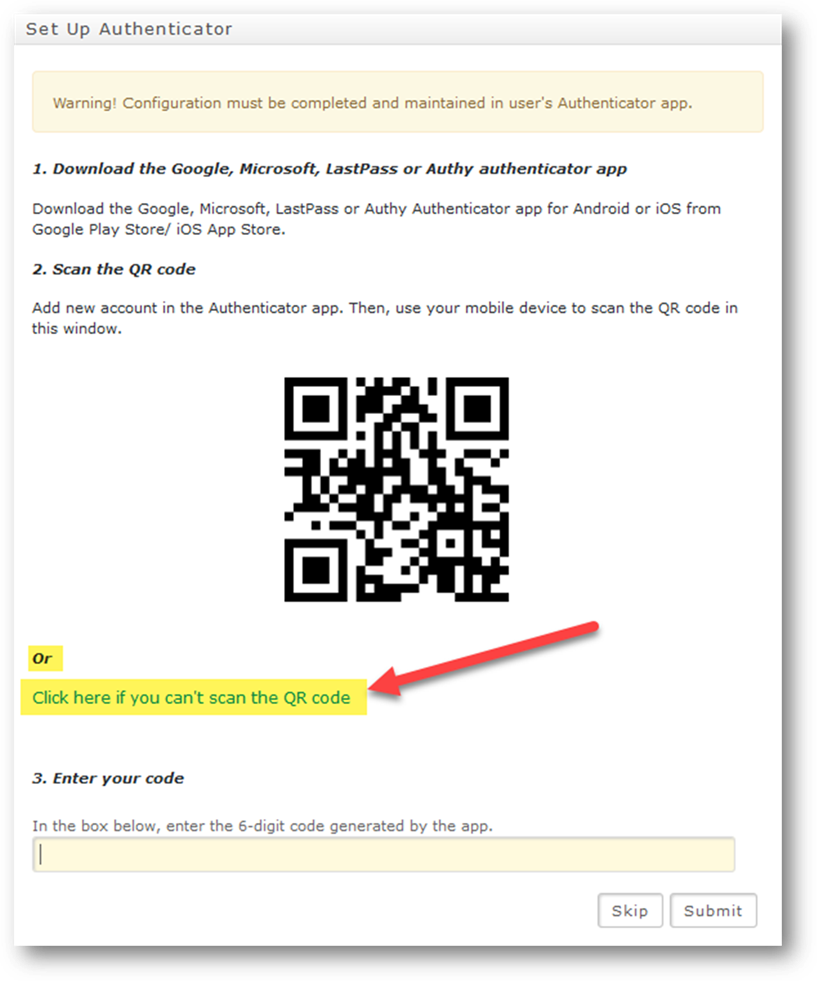
(Note
- in some cases no text code is available, and you'll need to extract the text
code from the QR image - Click Here for
how to handle that.)
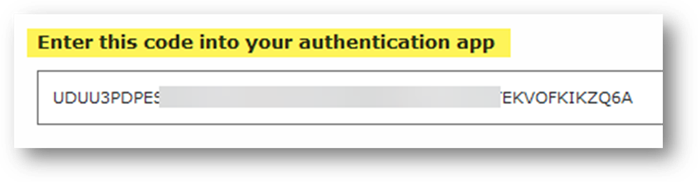
In
this example, clicking the link above exposed the code in a pop-up window -
Copy the code for use in the next step.
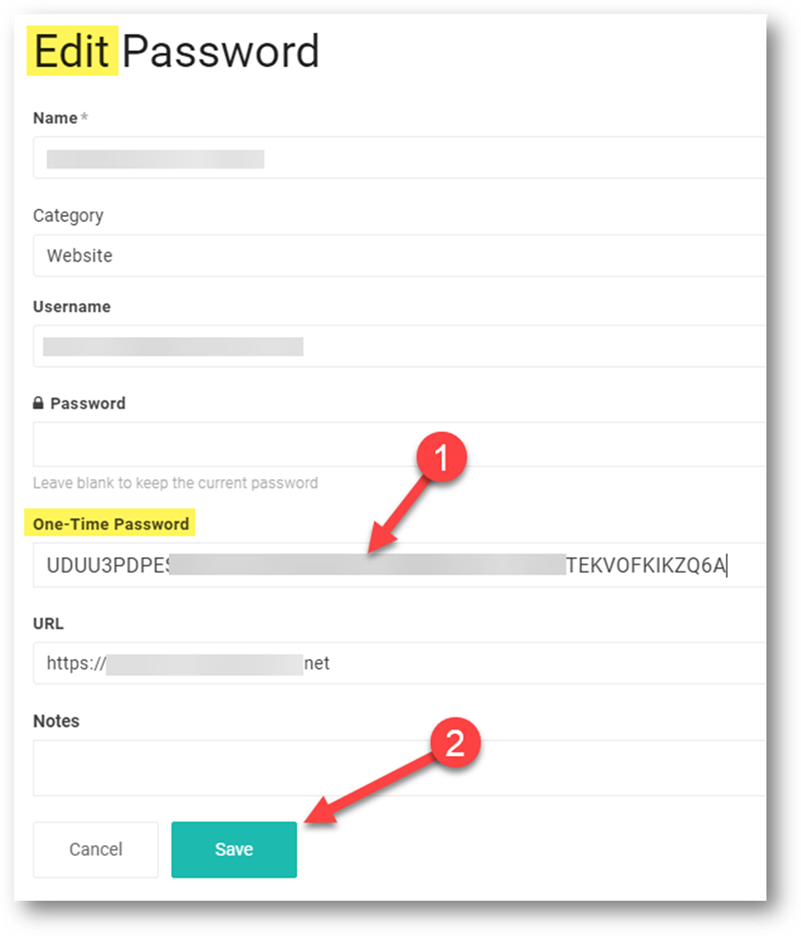
Back
in MyGlue,
enter 'Edit' mode for the credentials you're adding the OTP to, then paste in
your OTP code...
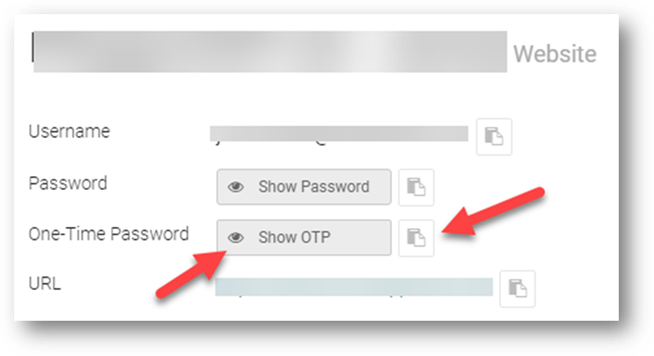
You
can now Copy or show the OTP:
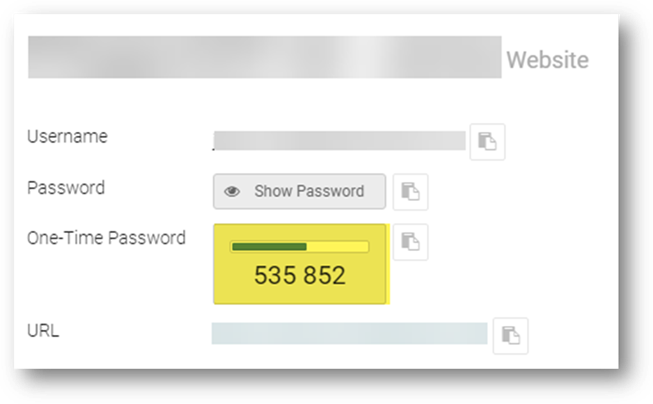
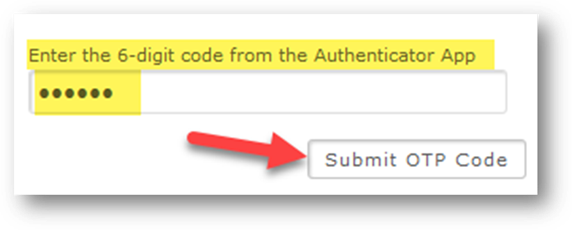
Lastly,
back at the website login, you'll paste in the OTP code copied from MyGlue, and
finally be granted access to the website:
Copyright (C) 2021 All rights
reserved, MainFrameIT, LLC