
Table
of Contents:
o
Quick Tour
o
Staff Passwords
o
Default Permissions
o
Accessing Passwords
o
Adding a Password
o
Editing a Password
o
Deleting a Password
o
Creating a Password Folder

Password
Section Quick Tour:
Backed
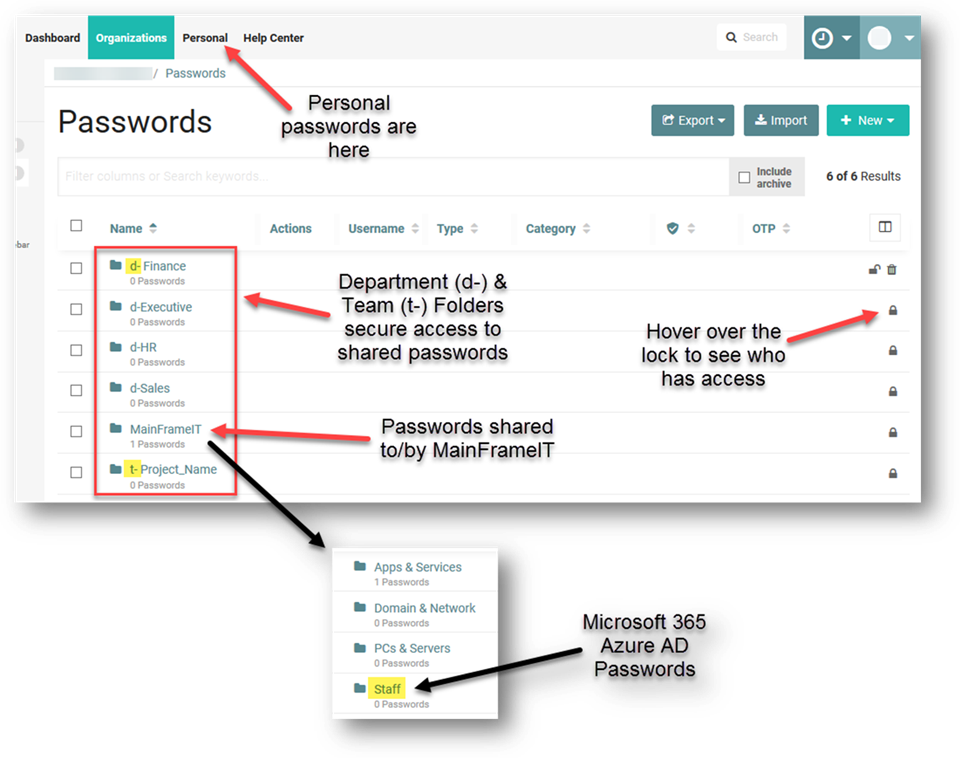
by security groups, we've pre-created department / team folders, customized to
your organization's needs.
About
Staff Microsoft 365 Passwords in the MainFrameIT -> Staff Folder:
o
Staff cannot see other staff's
passwords.
o
If they wish, staff can choose to
hide their passwords from MainFrameIT.
o
When users need to share passwords
with MainFrameIT, we'll look for the password here.
o
When MainFrameIT needs to reset a
user's password, this is where we'll record what the password was changed to.
o
New hire passwords will be recorded
here.
Default
Permissions:
o
Only the creator has access by
default - Passwords created by MyGlue users are visible only to that user. This
ensures that a password is not exposed to an entire group or organization upon
creation.
Accessing
Passwords:
To
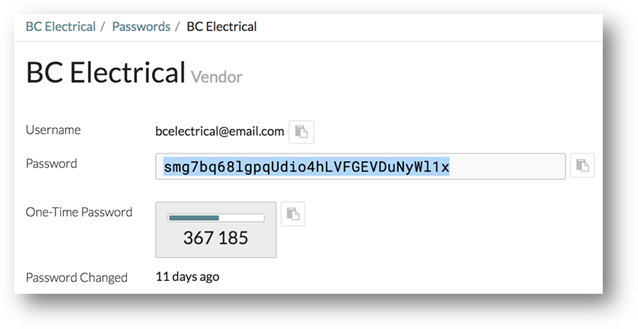
open a password, click on it. To view the encrypted password or OTP
code on screen, click the respective field. This decrypts the password or
OTP code and displays it in plain text for 30 seconds. Viewing the OTP will
also display the remaining time of validity.
You can also click the Copy to clipboard button next to the password or OTP
code to copy it without displaying it on screen.
Adding
A Password:
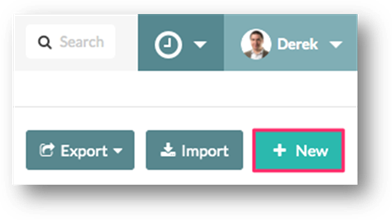
Click
the +New button
in the top-right corner of the screen.
In
the Create Password page, complete the following fields:
o
Name - As this is what search uses, give your password a
descriptive name.
o
Category - Select a relevant category.
o
Username
o
Password - Click Generate to auto-create a strong password. Once generated,
you can click the eye icon to toggle visibility.
o
Alternatively, you can:
§ Manually enter a password.
§ Generate extra complex passwords at PasswordsGenerator.net, and paste
them into MyGlue.
o
One-Time
Password (optional) - Enter the secret key
from any third-party website authenticator app setup prompt. To learn more, Click
Here.
o
URL - If this is an online account, enter the URL of the
website you'll be accessing. Be sure to include http(s):// at the
beginning of the URL. Otherwise, the link will not be clickable in the mobile
app.
o
Notes - Enter any other useful information in the Notes
area (e.g. account numbers, loyalty program numbers, etc.)
Click
Save.
Editing
a Password:
o
You can edit a password by clicking
the pencil icon to the right of the relevant row when in the password list
view, or by following the steps below:
o
Open the password you want to edit.
o
Click the Edit button in the
top right.
o
Make your changes.
o
If you're not changing the actual
password, leave the password field blank to keep the existing password.
o
Click Save. Open the password
Deleting
a Password:
o
Open the password you want to
delete.
o
Click the Delete button in
the top right.
o
On the confirmation prompt, click Yes
to delete it.
WARNING:
Keep
in mind that anything deleted from your MyGlue account is immediately deleted. There is no
way for a MyGlue
user to undo this action.
Creating
a Password Folder:
You
can create additional folders for password organization, inside of your
department / team folders.
o
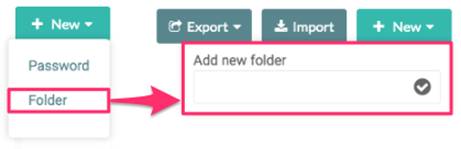
Navigate to Organizations >
Passwords and then click + New in the top-right corner.

o
In the dropdown, click Folder. A
field will appear allowing you to name your new password folder.
Your
new password folder will now appear in the Password list view.
o
Drag and drop the passwords from the
list view into the new folder.
WARNING:
Keep
in mind that anything deleted from your MyGlue account is immediately deleted. There is no
way for a MyGlue
user to undo this action.
Copyright (C) 2021 All rights
reserved, MainFrameIT, LLC